
Learn which Facebook account types can schedule posts, how to set it up in the app or Buffer, and how to build a posting plan that runs while you're away.
Most creators who run a Facebook group manage it on vibes. You post when you remember, you get your best ideas at 3 a.m. and lose them by breakfast, and a few weeks go by with nothing. The group loses momentum, and you feel guilty about it.
The fix is boring and it works. One group admin I know scheduled just two posts a week before a three-month leave. The group ended up more active than it had ever been, even though she wasn't there. A small, predictable plan beat her sporadic bursts of effort.
Start with your account type
Before you pick a tool, check what you're posting from. Facebook only lets you schedule from some account types, and most scheduling frustration comes from trying it on the wrong one.
- <strong>Facebook Page:</strong> the most flexible option. You can schedule in the Facebook app, in Meta Business Suite, or with Buffer, and posts publish automatically.
- <strong>Profile in professional mode:</strong> Facebook's built-in scheduling works here. Buffer doesn't connect to these profiles.
- <strong>Regular personal profile:</strong> no scheduling at all. Turn on professional mode or post from a Page instead.
- <strong>Facebook Group:</strong> admins and moderators can schedule from inside the Group, including recurring posts. Meta Business Suite doesn't support Groups.
Schedule natively in the Facebook app
If you run a Page or a professional-mode profile, the app is the fastest way to start. You don't need to connect or pay for anything.
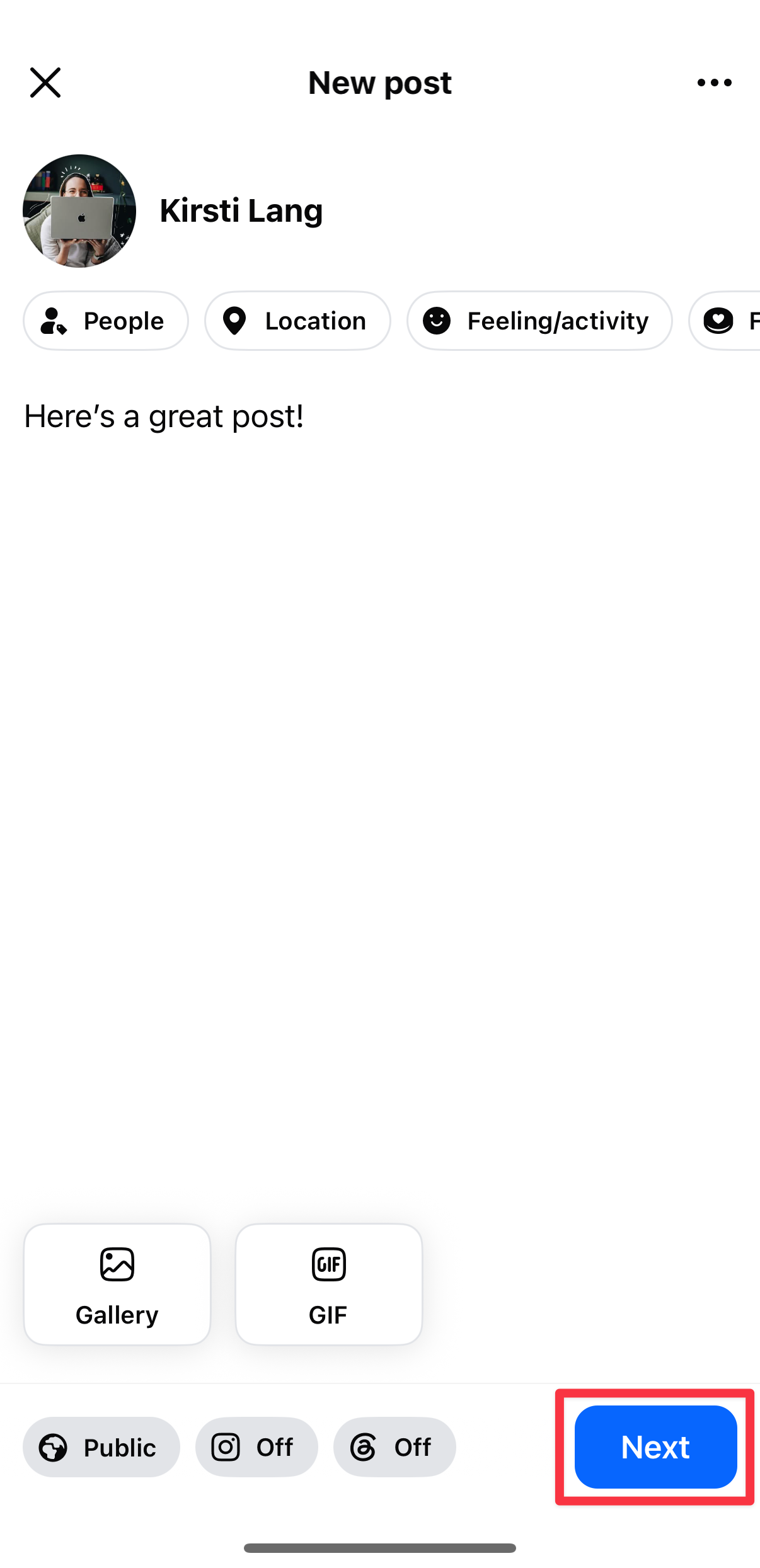
- Tap "What's on your mind?" at the top of your feed, Page, or profile.
- Write your post and add any media.
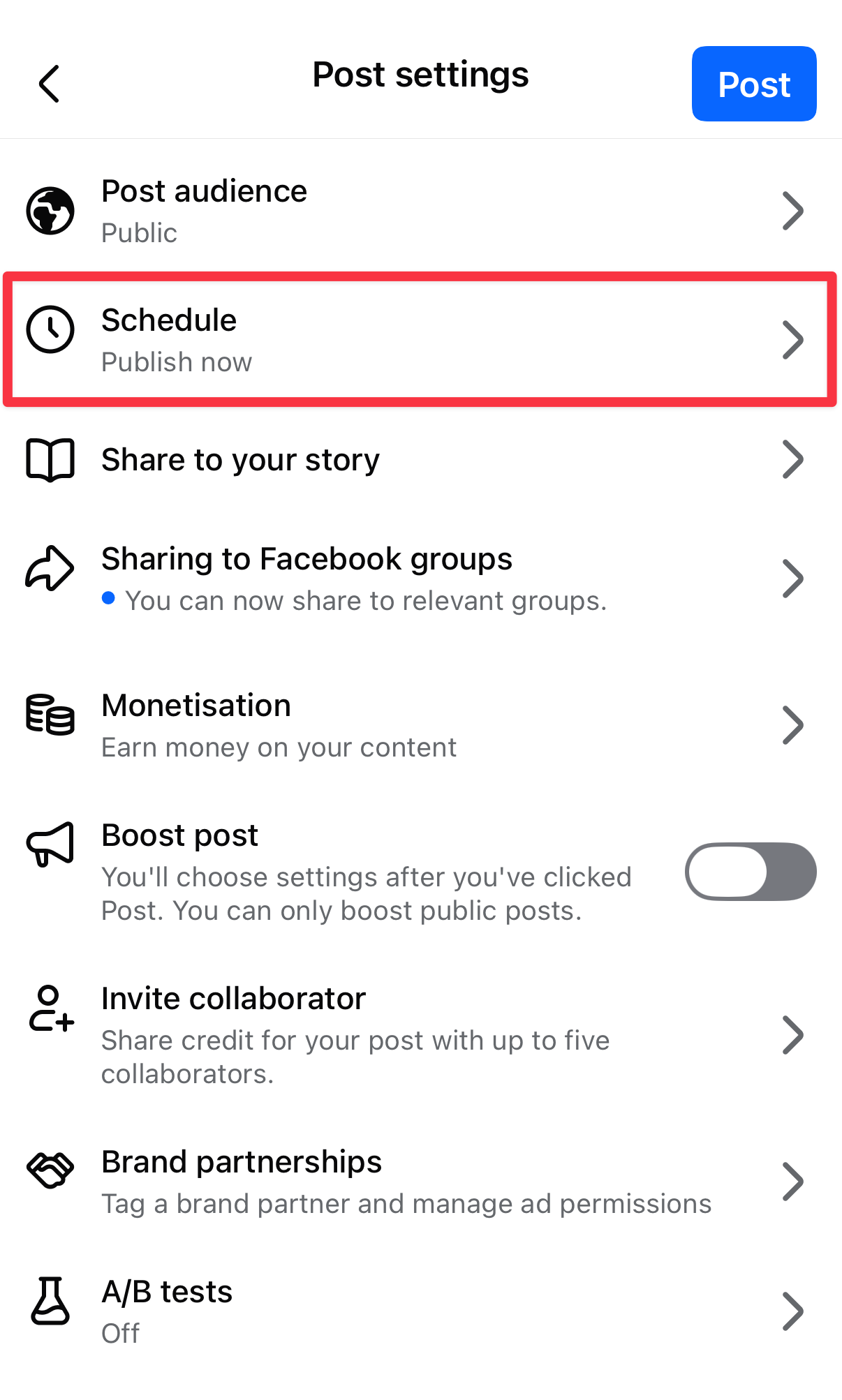
- Tap "Next," then "Schedule" to open the scheduling options.
- Pick your date and time, hit "Save," then "Schedule."
Groups work a little differently, and this is the version I'd set up first if you run a community. As an admin or moderator, you scheduled from inside the Group itself.
- Tap "Write something" in your Group and create the post.
- Tap the calendar icon to set the date and time.
- Tap "Schedule."
Groups also support recurring posts. That's ideal for anything that repeats: a weekly intro thread, a "wins of the week" check-in, a Friday question. Set it once and the slot fills itself.
When to use Meta Business Suite or Buffer
Meta Business Suite is Meta's free tool for managing Facebook and Instagram content in one place. It schedules to Pages and Instagram, but not Groups. If you only post to those two platforms and don't mind staying inside Meta's ecosystem, it's a solid default.
Buffer makes sense when you want one calendar across several channels. It schedules posts, Reels, and Stories to Facebook Pages, and those publish automatically. For Groups, Buffer sends you a phone notification at the scheduled time and you tap to publish. That's still useful, because the post is written and queued, but it isn't fully hands-off. If you're about to go offline for a while, schedule Group posts inside the Group itself.
- <strong>Only Pages and Instagram:</strong> Meta Business Suite.
- <strong>Multi-platform calendar:</strong> Buffer for Pages, plus the Facebook app for personal-style profiles.
- <strong>Group posts that must publish while you're away:</strong> native Group scheduling.
- <strong>Professional-mode profile:</strong> Facebook's own tools, since Buffer doesn't connect.
Fix it when the schedule option disappears
If you can't see the schedule button, there are two usual causes. First, you're posting from a regular personal profile, which can't schedule. Switch on professional mode or move the content to a Page. Second, you don't have admin access to the Page or the admin or moderator role in the Group. Ask the owner to update your role.
Once posts are queued, you can edit, reschedule, or delete them in Facebook, in Meta Business Suite, or in Buffer's calendar for posts you scheduled there. Check your queue once a week so a stale post doesn't go out after plans change.
Turn scheduling into a plan
The tool is the easy part. The plan is what keeps a group or Page alive. Start small enough that you'll actually keep it up: two posts a week is plenty for a group, and it worked in the example above.
For timing, Buffer's analysis of more than 1 million Facebook posts found that 9 a.m. on Thursday performed best. Treat that as a starting test, not a rule. Schedule a few posts there, then compare against your own numbers.
- Confirm your account type and whether you have admin or moderator access.
- Pick your tool: native app, Meta Business Suite, or Buffer.
- Set up one recurring Group post for a weekly ritual.
- Batch two posts a week in a single sitting, and keep a running note for 3 a.m. ideas.
- Test Thursday at 9 a.m. against another slot and keep whichever performs better.
- Review your scheduled queue weekly and edit or delete anything outdated.


Leave a
comment